Track All Your RSVPs in One Place: Your Responses Dashboard
You've responded to a dozen event invitations over the past month. A wedding. A birthday party. Two work events. A neighborhood gathering. Now you're trying to remember: which one was next Saturday? Did you say yes or no to the company dinner?
JoinMyEvent's Responses Dashboard solves this problem.
What Is the Responses Dashboard?
The Responses Dashboard is a central hub where you can see every event you've RSVP'd to through JoinMyEvent. Think of it as your personal event calendar, but focused on events you've been invited to (not ones you're organizing).

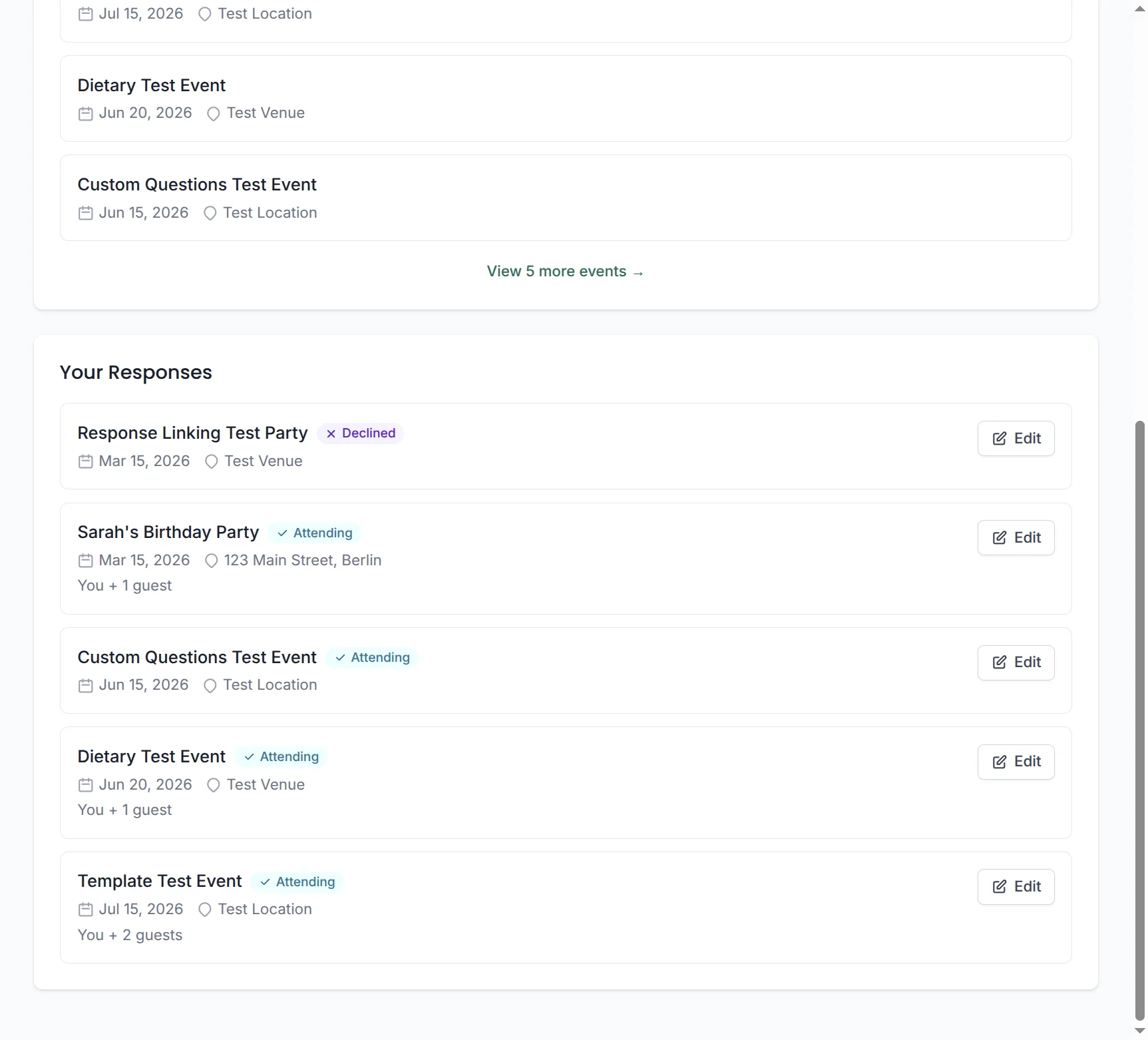
For each event, you can see:
- Event name and date - What you're attending and when
- Your response status - Attending, declined, or pending
- Party size - How many guests in your group
- Location - Where the event is happening
- Quick edit access - One click to update your response
Who Can Use It?
The Responses Dashboard is available to logged-in users who have linked responses to their account.
Here's how it works:
For Existing Account Holders
If you already have a JoinMyEvent account (maybe you've organized events before), simply log in before responding to invitations. Your responses automatically appear in your dashboard.
For New Users
When you respond to an event as a guest, you'll see an option to create an account and link your response. This is optional - you can always respond without an account using our no-signup system.
Linking Previous Responses
Even if you responded as a guest first, you can later create an account and link those responses. Look for the "Sign up and link this response" option on the confirmation page.
Benefits of the Dashboard
1. All Your Events in One Place
Stop searching through email folders for event details. Your dashboard shows everything at a glance, sorted by date. Upcoming events first, past events archived.
2. Instant Edit Access
Every event in your dashboard has an "Edit" button that takes you directly to your response. Need to add a plus-one? Two clicks. Changing your answer? Three clicks.
No hunting for the original email. No magic links to save (though they still work). Just log in and update.
3. Response History
See your response history across events. Useful when coordinating with others: "Did I say yes to that?" - now you know instantly.
4. Upcoming Event Reminders
Your dashboard gives you a visual reminder of upcoming events. See them all in one list rather than scattered across email and calendar.
Dashboard vs. Magic Links
You might wonder: if I have the dashboard, do I still need magic links?
Both exist because different guests have different preferences:
| Feature | Dashboard | Magic Links |
|---|---|---|
| Requires account | Yes | No |
| Central view of all events | Yes | No |
| Works for tech-shy guests | Maybe not | Yes |
| Quick one-time edits | Good | Best |
| Managing many responses | Best | Tedious |
Use the dashboard if: You respond to many JoinMyEvent invitations and want central management.
Use magic links if: You rarely need to track responses or prefer no-account simplicity.
How to Access Your Dashboard
1. Log In
Visit joinmyevent.co/login and sign in with your email and password.
2. View Your Dashboard
After logging in, you'll see your main dashboard. The "Your Responses" section appears below "Your Events" (if you organize events too).
3. Manage Responses
Click any event to see details, or click "Edit" to update your response directly.
What You'll See
For each linked response, your dashboard shows:
| Information | Example |
|---|---|
| Event name | "Sarah's Birthday Party" |
| Date and time | "Mar 15, 2026" |
| Location | "123 Main Street, Berlin" |
| Your status | "Attending" with icon |
| Party size | "You + 1 guest" |
| Edit link | Direct button to update |
Common Questions
Can I See Responses to Events I Didn't Link?
No - only responses where you were logged in (or later linked) appear in your dashboard. Past guest responses (before you created an account) remain accessible via magic links only.
Can Organizers See My Dashboard?
No. Event organizers can only see your responses to their specific events. Your dashboard is private to you.
What Happens to Old Events?
Past events remain visible in your dashboard for your records. Organizers may eventually delete events, which would remove them from your view.
Is This Different from the Events Tab?
Yes. The "Events" section shows events you're organizing. The "Your Responses" section shows events you've been invited to and responded to.
| Dashboard Section | What It Shows |
|---|---|
| Your Events | Events you created as an organizer |
| Your Responses | Events you've RSVP'd to as a guest |
Getting Started
Want to try the Responses Dashboard?
- Create an account - It's free
- Respond to an event - Make sure you're logged in when you respond
- Return to dashboard - See your response in "Your Responses"
If you've previously responded as a guest (without logging in), look for the "Link to account" option when you next visit one of those event pages.
Have questions about the dashboard or other features? Check our FAQ or email us at contact@joinmyevent.co.
Ready to Simplify Your Event Planning?
Create beautiful event invitations where guests don't need to sign up